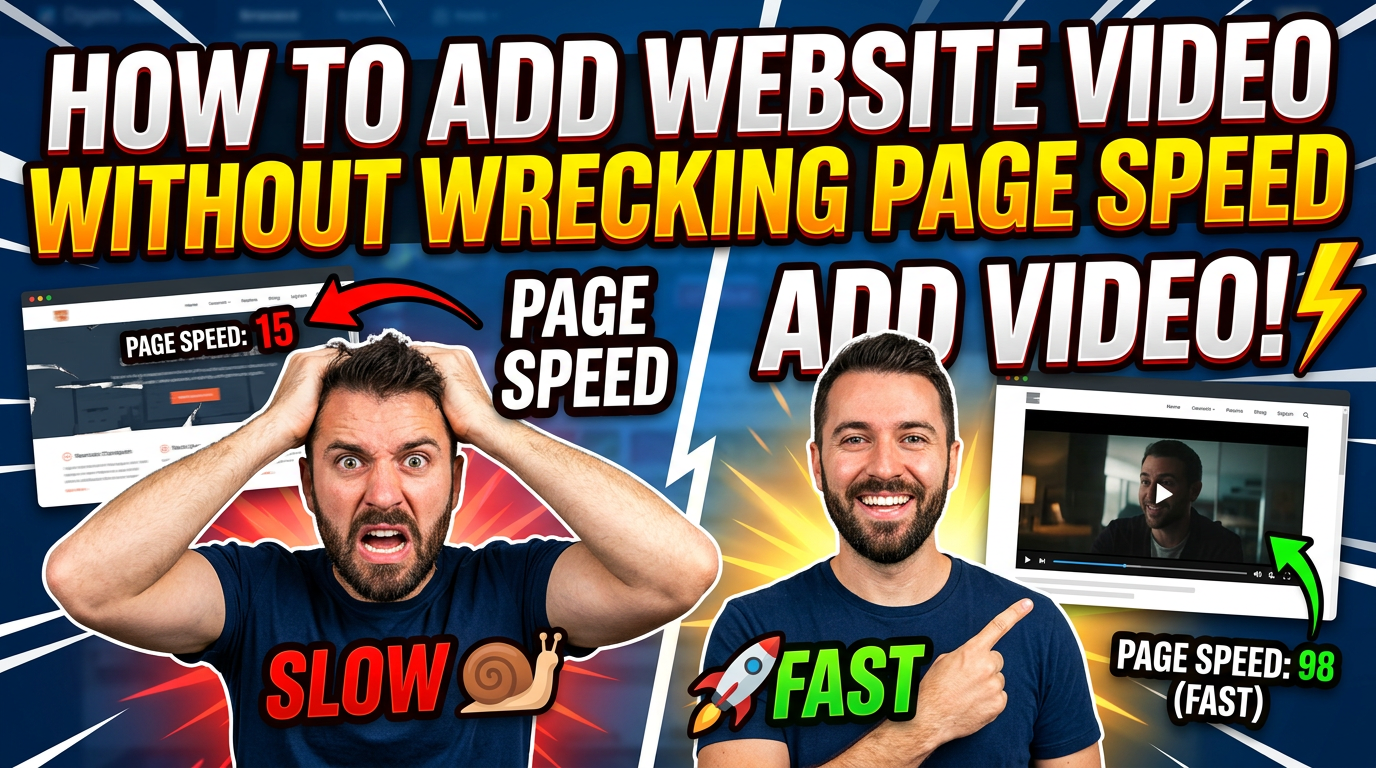
A video that nobody has pressed play on should not make the rest of your website wait.
Yet that is what happens on many small business sites. A YouTube, Vimeo, or custom video player appears halfway down a service page, but its scripts, tracking code, fonts, thumbnails, and player controls begin loading as soon as the page opens. The visitor pays the speed cost before deciding whether the video is useful.
This is not an argument against video. Product demonstrations, customer stories, and short process explainers can answer questions that are awkward to handle with copy alone. The fix is to treat the player as optional until the visitor is close to using it.
Google’s web performance team reports that lazy-loading a YouTube embed can save more than 500 KiB during the initial page load. That is a meaningful reduction from one small change. Here is how to make it without creating a blank box, a broken player, or an SEO problem.
First, identify what kind of video you have
The right setup depends on how the video reaches the browser.
An embedded video usually arrives inside an iframe from YouTube, Vimeo, Wistia, or another hosting platform. A self-hosted video uses the HTML video element and files stored on your site or content delivery network. A background video is normally self-hosted, muted, and set to play automatically as part of the design.
Those three cases need different treatment. An iframe brings an outside website’s player onto your page. A self-hosted video gives you more control over file formats and loading behavior. A background video is part of the initial visual experience, so delaying it may expose an empty hero area.
Before changing code, open the affected page in Chrome, right-click the video, and inspect it. Look for either an <iframe> or <video> tag. If you use a page builder, identify the widget and hosting provider in the editor. Do not install a performance plugin until you know which element you are trying to control.
Use native lazy loading for videos below the fold
If an embedded video sits below the first screen, start with the browser’s built-in iframe loading attribute:
<iframe
  src="https://www.youtube.com/embed/VIDEO_ID"
  title="How our estimating process works"
  loading="lazy"
  width="560"
  height="315"
  allowfullscreen>
</iframe>
The loading="lazy" instruction tells the browser to delay fetching the iframe until it is approaching the visible area. MDN explains that the browser chooses the loading distance based on factors such as the resource and connection. You do not need to calculate a fixed number of pixels.
This change is appropriate for a testimonial halfway down a homepage, a tutorial near the end of an article, or a product demonstration below the core product details. It is not appropriate for a video that begins in view and is the main reason someone opened the page. Above-the-fold media should be available promptly.
Native lazy loading is a good baseline because it requires little code and fails gracefully. It also preserves the normal embed. The player is still in the page markup, but the browser postpones much of its network work.
For a bigger speed gain, load the player after a click
Native lazy loading delays the player. A facade avoids loading it until the visitor asks for it.
A video facade looks like a player but initially contains only a lightweight thumbnail, a descriptive title, and a play button. When the visitor clicks, JavaScript replaces that preview with the real iframe and starts playback. Until then, the third-party player does not run.
This approach works especially well when a page has several video testimonials or when most visitors never play the video. The initial page loads an image and a small amount of local code instead of several third-party players.
The facade must be honest and usable. Make the play control a real button, give it an accessible label, support keyboard activation, and keep the thumbnail representative of the actual video. Do not make a static image look interactive if clicking it does nothing. Google’s guidance on third-party embed performance recommends facades as one way to defer costly resources.
If you use WordPress, search your existing performance plugin for a setting called “lazy-load video,” “replace YouTube iframe with preview,” or “click-to-load embeds.” Do not stack two plugins that both rewrite video markup. Test one implementation and inspect the page source afterward.
Set self-hosted video preload deliberately
Self-hosted video does not have an iframe, so loading="lazy" may not be the only control you need. The preload attribute tells the browser how much video data it should consider fetching before playback:
<video
  controls
  preload="metadata"
  poster="/images/process-video-poster.webp"
  width="1280"
  height="720">
  <source src="/video/process-explainer.webm" type="video/webm">
  <source src="/video/process-explainer.mp4" type="video/mp4">
</video>
preload="none" asks the browser not to preload the media. preload="metadata" asks for enough information to understand details such as duration and dimensions. preload="auto" gives the browser permission to fetch more. MDN’s HTML performance guide describes metadata as a way to request the minimum data needed to present basic video information.
For most below-the-fold service and testimonial videos, metadata is a sensible starting point. Use none when there are several large videos and playback is uncommon. Reserve auto for cases where immediate playback matters and you have measured the bandwidth cost.
The poster image deserves the same attention as any other site image. Compress it, size it for the displayed player, and use a modern format such as WebP or AVIF. Include explicit width and height so the browser can reserve the correct space before the image arrives.
Do not lazy-load the wrong thing
Performance work can backfire when every media element gets the same rule.
Your largest visible image or video poster may contribute to Largest Contentful Paint. Delaying that asset can make the page look slower, not faster. Google’s guidance says resources in the initial viewport should not be lazy-loaded. If the video is the central element at the top of a landing page, load its poster normally and test whether the player itself should be deferred.
Background video needs extra caution. It often consumes bandwidth without giving visitors controls or information they requested. On mobile, a well-chosen still image may communicate the same idea faster and with less distraction. If the motion is decorative, respect the user’s reduced-motion preference and provide a static fallback.
Also avoid autoplay with sound. It interrupts the visitor, creates accessibility problems, and is commonly blocked by browsers. If a silent loop is essential to the design, keep it short, compressed, and secondary to a useful heading and call to action.
Keep the layout from jumping
A fast page that shifts while someone tries to click is still a bad page.
Reserve the player’s aspect ratio before it loads. The simplest option is explicit width and height attributes that match the video’s proportions, paired with responsive CSS. A 16:9 wrapper can also use aspect-ratio: 16 / 9.
The preview, loading state, and final player should occupy the same box. If the facade is 16:9 but the iframe appears at a different height, everything below it will move. That movement can hurt Cumulative Layout Shift, one of Google’s Core Web Vitals.
Check the mobile layout separately. A desktop embed can look fine while its fixed width pushes beyond a phone screen. Use max-width: 100%, let height scale automatically, and make the play button large enough to tap without zooming.
Preserve accessibility and useful context
Lazy loading should change when the media downloads, not whether people can understand or operate it.
Give each iframe a specific title, such as “Customer story from Acme Tooling,” rather than “video.” Provide captions for speech and meaningful sound. The W3C’s accessibility guidance requires captions for prerecorded synchronized media at WCAG Level A. If the video contains details needed to buy, book, or use a service, place the essential information in nearby text too.
For a click-to-load facade, the preview button must work with Enter and Space, show a visible focus state, and announce what it will play. After activation, move focus sensibly if the embedded player needs keyboard control. Test it without a mouse.
Privacy belongs in this decision as well. Third-party video platforms may set cookies or initiate network requests. A facade reduces unnecessary contact with the platform before a click, but it is not automatically a complete consent solution. Confirm the behavior against your consent policy and the platform’s current settings.
Do not trade speed for invisible video SEO
Google can index videos hosted on your site or embedded from platforms such as YouTube. It may also index the third-party platform’s version. Google’s video SEO documentation explains how embedded videos can appear across your page and the host platform.
For a video to help search visibility, the surrounding page still needs a clear purpose. Use a descriptive page title, a relevant heading, useful nearby copy, and a stable thumbnail. If the video is a main feature of the page, add valid VideoObject structured data with the correct name, description, thumbnail, upload date, duration, and content or embed URL. Google’s VideoObject documentation lists the required and recommended properties.
Do not hide the only meaningful description inside the video. Search engines and visitors who cannot play it need the written context. A transcript can help when it adds information, but a raw transcript full of false starts is not automatically good page copy. Edit it into something readable.
After changing the player, inspect the rendered page and test the URL in Google Search Console. Confirm that the thumbnail is reachable, the structured data still validates, and the player loads through a normal click or scroll. Google also recommends video sitemaps to help it find and understand video content, particularly when discovery is difficult.
Test the page before and after
Do not judge this change by whether the page “feels faster” on office Wi-Fi. Capture a baseline first.
Test the same URL in PageSpeed Insights before and after the change. In Chrome DevTools, use the Network panel to compare initial transferred bytes, request count, and requests to the video provider. Then test the actual interaction: scroll toward the player, press play, rotate a phone, use a keyboard, and reject optional cookies if your site has a consent banner.
Watch for four outcomes:
- The initial page makes fewer requests and transfers less data.
- The preview appears without shifting nearby content.
- The player loads reliably when requested.
- Captions, keyboard controls, analytics, and consent behavior still work.
If the numbers do not improve, find out why. A page builder may be adding a second player script. A consent tool may be replacing the embed. The thumbnail may be oversized. Performance plugins can also cache old markup, so clear the relevant site and CDN caches before the final test.
A practical policy for your whole site
You do not need a custom rule for every page. Adopt a short video policy your designer, developer, and marketing team can follow:
- Load above-the-fold posters normally, but avoid loading a heavy third-party player until it is needed.
- Lazy-load below-the-fold iframes, and use click-to-load facades when a page has multiple embeds.
- Give self-hosted video an intentional preload setting, a compressed poster, captions, and fixed dimensions.
- Measure requests, transferred bytes, layout stability, and playback before publishing.
- Keep essential sales information in HTML, even when video explains it too.
That policy lets you keep the trust and clarity video can provide without charging every visitor a bandwidth tax.
If your videos are slowing down key service or landing pages, get started. We can audit the embeds, fix the loading strategy, and make sure the result still works for customers and search engines.