Here’s a stat that should stop you cold: nearly 75% of small businesses don’t use analytics, tracking, or coupon codes — and 18% don’t track anything at all. Not a single click, form submission, or page view.
That means most small business owners are spending money on their website, maybe running ads, publishing content, and have absolutely no idea what’s working. They’re guessing.
Google Analytics 4 (GA4) is the tool that fixes this. It’s free, it’s powerful, and it replaced Google’s old Universal Analytics in July 2023. But GA4 has a real problem: it’s confusing. The interface is different from what most people are used to, the terminology changed, and there’s so much data available that it’s genuinely hard to know where to start.
This guide is written for small business owners who want useful answers — not data scientists who want to stare at graphs all day.
Why GA4 Feels So Hard (And Why It Doesn’t Have to Be)
Universal Analytics, GA4’s predecessor, was built in 2012. It tracked “sessions” — visits to your website — and most of the reports were pretty intuitive. Pageviews, bounce rate, traffic sources. Not complicated.
GA4 was designed from scratch for a world where people move between devices constantly, apps and websites are intertwined, and third-party cookies are disappearing. It tracks “events” instead of sessions. That’s a fundamentally different model, and it’s why longtime GA users often feel like they’ve logged into a foreign system.
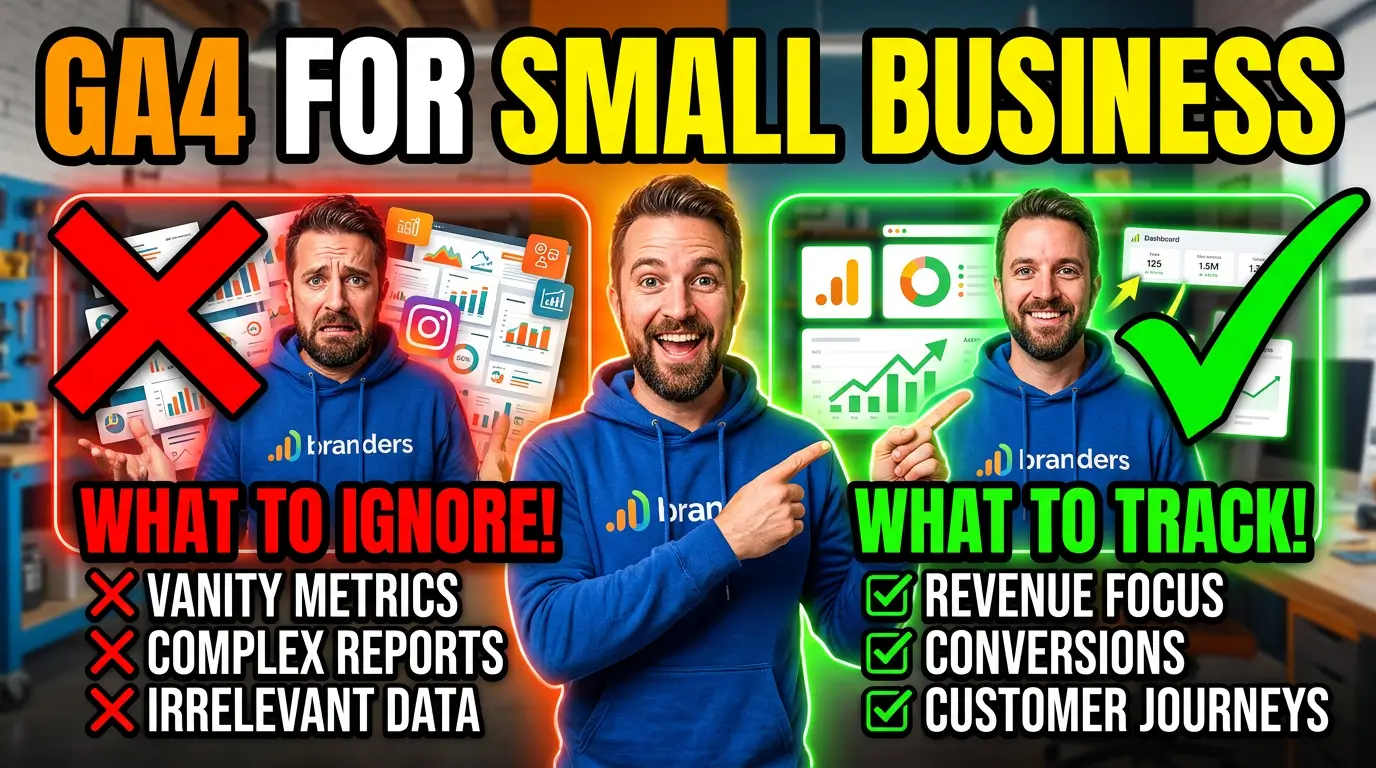
But for a small business owner who just wants to know “is my website working?”, GA4 can actually answer that question well — as long as you ignore 80% of what’s in there and focus on the parts that matter.
The Five Questions Your Analytics Should Answer
Before you look at a single metric, be clear about what you actually need to know. For most small businesses, there are five questions worth asking consistently:
Where is my traffic coming from? Which pages are people actually reading? Are visitors doing anything useful, or just landing and leaving? Where in the process are people dropping off? And which pages are actually driving leads or sales?
Everything else is optional. Reports that go beyond these five questions are fine to explore eventually, but they shouldn’t be the focus when you’re getting started.
The Metrics That Actually Matter
GA4 tracks dozens of metrics. Most of them aren’t relevant to you. Here are the ones that are:
Users is the number of distinct people who visited your site in a given period. It’s a good baseline for whether your overall reach is growing or shrinking over time. Don’t obsess over it daily — look at trends over weeks or months.
Sessions tells you how many times people visited. One user can have multiple sessions, so this number is usually higher than users. If sessions are growing but users aren’t, that’s actually a good sign — it means your existing visitors are coming back.
Engaged sessions is where GA4 gets smarter than the old tools. Instead of bounce rate (which could be gamed and was often misleading), GA4 measures engaged sessions — visits where someone spent at least 10 seconds on your site, visited two or more pages, or triggered a conversion event. According to Swydo, engagement rate is one of the top metrics to prioritize because it filters out accidental or bot traffic that inflates your numbers.
Conversions is the metric that tells you whether your website is doing its actual job. A conversion is any action you define as valuable — a contact form submission, a phone number click, a quote request, a purchase. If you haven’t set up conversion tracking, you’re flying blind on the most important part. More on this below.
Traffic source / medium breaks down where your visitors came from. Organic (Google search), direct (typed your URL), referral (another site linked to you), social (Facebook, Instagram, etc.), and paid (if you’re running ads). This tells you which of your marketing channels is actually delivering.
The Three Reports to Check Regularly
Inside GA4, you can get lost in reports quickly. Most of them are useful to a data team at a large company. For a small business, three reports are worth checking on a consistent schedule:
Acquisition Overview (under Reports > Acquisition) shows you where your traffic is coming from. You want to see which channels are growing, which are flat, and whether your SEO efforts or social posts are actually sending people to your site. If you’re running Google Ads and organic traffic from search is low, that’s a flag. If Facebook is sending traffic but nobody’s converting, that’s a flag too.
Engagement > Pages and Screens shows you which specific pages on your site are getting the most views and engagement. You’ll often find that 20% of your pages drive 80% of your traffic — which tells you what to write more of and what to stop wasting time on.
Conversions (under Reports > Engagement > Conversions) shows you how many times people took the actions you care about. This is the most important report on the list, and it only works if you’ve set up your conversion events first.
Setting Up Conversion Tracking: The One Thing You Can’t Skip
A lot of small businesses install GA4, look at traffic numbers for a week, and then stop. The problem is that traffic numbers without conversion data tell you very little. You might be getting 500 visitors a week — but if none of them are contacting you, something is broken. Or maybe 20 of them are contacting you every week, and you just don’t know it.
Setting up a basic conversion in GA4 requires marking specific events as “conversions.” The two you need immediately are form submissions and phone click-throughs.
If your website is on WordPress, a plugin like MonsterInsights or GA4 directly through Google Tag Manager can track form completions automatically. For more custom setups, Google’s own Tag Manager is the right tool — it doesn’t require you to touch code.
Once conversions are tracking, you can go back to the Acquisition report and see not just who’s visiting, but who’s converting. That’s when the data starts to actually mean something.
The Engagement Rate Shift (Why Bounce Rate Is Gone)
If you used Google Analytics before, you probably tracked bounce rate obsessively. A high bounce rate (people landing and immediately leaving) was generally a bad sign.
GA4 replaced bounce rate with engagement rate. The logic is better: instead of penalizing a page just because someone read your entire blog post and left (which looks like a “bounce” even though they actually got value), GA4 only marks a session as unengaged if someone visited one page, stayed less than 10 seconds, and didn’t do anything.
According to MeasureSchool, a good engagement rate benchmark for most websites is above 50%. If you’re below that, your pages aren’t holding people’s attention — which is worth investigating. Check your load speed (a slow site kills engagement), your headline quality, and whether your content actually matches what people were searching for when they found you.
What You Can Safely Ignore (At First)
GA4 has a lot of features that sound exciting but will waste your time when you’re getting started. Predictive audiences, funnel exploration reports, path analysis, cohort analysis — these are powerful tools for teams that have months of clean data and the bandwidth to act on what they find.
As a small business owner, you’re not there yet. Get your conversions tracking, check acquisition and engagement once a week, and make one decision at a time based on what you see.
The Analytify team puts it well: small businesses don’t need more data. They need fewer metrics they actually understand and act on.
A Practical Weekly Routine
You don’t need to spend hours in GA4. A 10-minute weekly check is enough to stay informed and catch problems early.
Start by looking at your last 7 days of users and sessions compared to the previous 7 days. Is traffic roughly stable, growing, or dropping? Then check the Acquisition report to confirm your top channels are holding. Then pull up conversions to see how many leads or contact events came in. If something looks off — traffic dropped 40% or conversions went to zero — that’s a flag to dig deeper.
Once a month, go to Pages and Screens and identify your top 5 pages by views. Are those the pages you want people finding? Are there pages that should be high-traffic but aren’t? That’s your content gap list.
Google Analytics 4 Is Free — Use It
There’s really no excuse not to have GA4 installed on your website in 2026. It’s free. Setup takes about 15 minutes. And the alternative is making marketing decisions based on gut feel while your competitors make them based on actual data.
Google Analytics has a 26.87% share of the entire web analytics technology market, meaning it’s the most widely used tool of its kind in the world. That’s not a coincidence — it’s because the data it provides, when you focus on the right things, is genuinely useful.
If you’re not sure whether GA4 is set up correctly on your site, or if you want help connecting conversion tracking to your contact forms, it’s worth getting a professional set of eyes on it. A misconfigured analytics setup is almost as useless as having no analytics at all.
Get in touch with our team and we’ll take a look at your current setup, make sure your tracking is clean, and help you understand what your data is actually saying.
Because the businesses that know their numbers will always outmaneuver the ones that don’t.

Richard Kastl
Founder & Lead EngineerRichard Kastl has spent 14 years engineering websites that generate revenue. He combines expertise in web development, SEO, digital marketing, and conversion optimization to build sites that make the phone ring. His work has helped generate over $30M in pipeline for clients ranging from industrial manufacturers to SaaS companies.