A shared link is not just a link anymore.
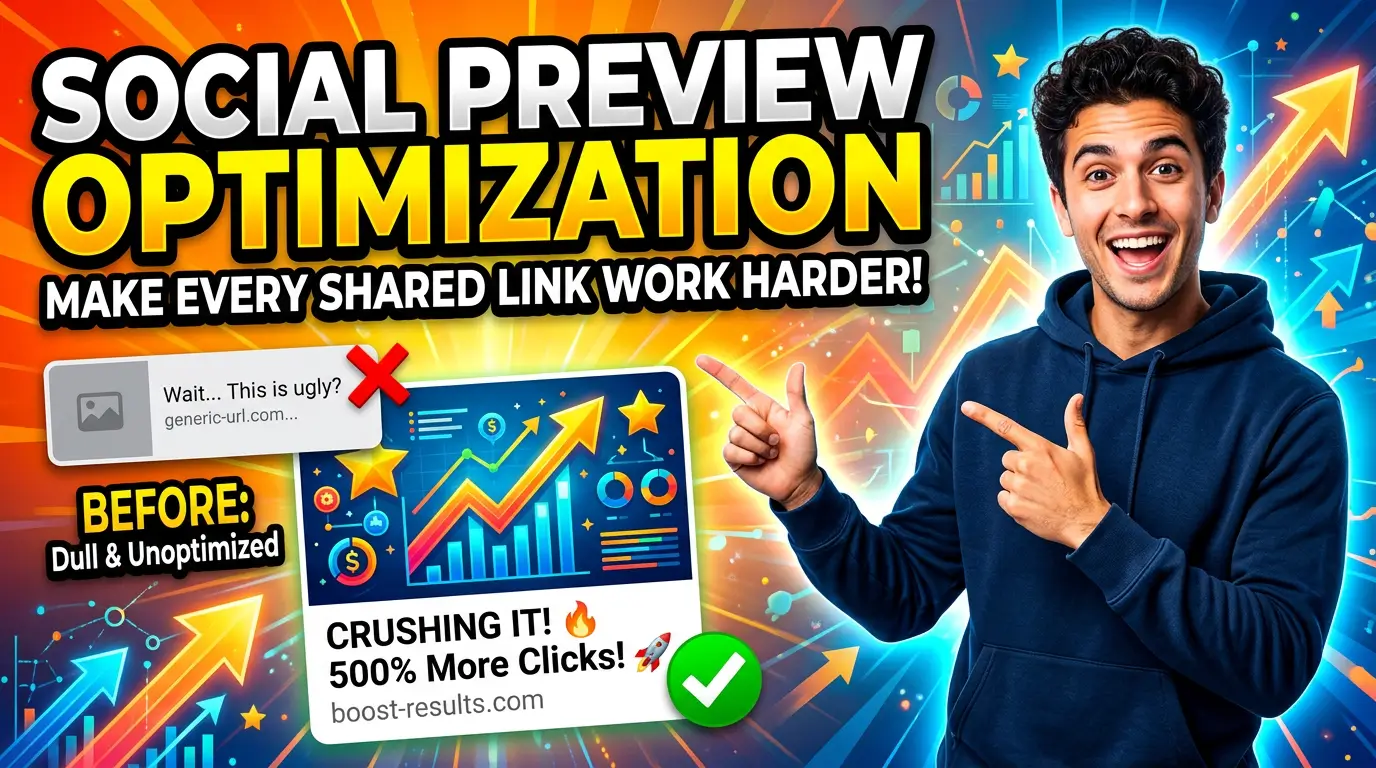
When a customer texts your quote page to a spouse, posts your blog in a Facebook group, drops your services page in Slack, or shares your booking page in a LinkedIn message, your website gets judged by a small preview card. The card usually includes a title, a short description, an image, and your domain.
If that card looks broken, cropped, vague, or random, you lose trust before the page even loads.
That is social preview optimization. It is the quiet website detail most small businesses miss. It is also cheap because it uses pages you already have.
This is not about chasing likes. It is about making every shared link look intentional, clear, and worth clicking.
Why social previews matter more in 2026
Customers are not moving through one clean channel. They find you in Google, check your social profiles, ask a friend, read reviews, and send links back and forth before they contact you.
That behavior keeps growing. Sprout Social’s Q2 2025 Pulse Survey found that 37% of consumers use social media as their starting point for product research, and 41% of Gen Z have a social-first search mindset. The same Sprout article reports that 76% of consumers bought something in the previous six months because of content they saw on social.
For a small business, that means your website pages do not live only on your website. They travel.
A bathroom remodeler’s gallery page might get shared in a neighborhood Facebook group. A manufacturer’s capabilities page might get pasted into a procurement thread. A med spa’s Botox FAQ might get sent in a group chat. A law firm’s consultation page might get bookmarked in LinkedIn messages.
In each case, the preview card becomes the packaging. If the packaging says “Home,” shows a blurry logo, or pulls a random stock photo, the prospect has to work harder to understand why the link matters.
Good previews do three jobs:
- They confirm what the page is about.
- They make the business look legitimate.
- They give the person sharing the link a better chance of being understood.
That last point matters. Your customer, employee, salesperson, or referral partner may be the one sharing the link. A clear preview makes them look better too.
What controls the preview card
Most platforms read metadata from your page. The main system is Open Graph.
The Open Graph protocol says the four required properties are og:title, og:type, og:image, and og:url. It also recommends helpful optional fields like og:description, og:site_name, and image details such as og:image:alt, og:image:width, and og:image:height.
X has its own card markup. The X Developer documentation says sites can specify card type in the page head with a twitter:card meta tag, commonly using a large image card for pages where the image helps sell the click.
You do not need to memorize every tag. You do need to make sure your CMS, theme, or developer is setting them correctly for the pages that matter.
For most small-business websites, the working set is simple:
<meta property="og:title" content="Emergency Roof Repair in Dayton" />
<meta property="og:description" content="Fast roof leak help from a local crew. See service details, response times, and how to request a quote." />
<meta property="og:image" content="https://example.com/images/emergency-roof-repair-dayton.jpg" />
<meta property="og:url" content="https://example.com/emergency-roof-repair-dayton/" />
<meta name="twitter:card" content="summary_large_image" />
Those few lines can be the difference between a link that looks like an accident and a link that looks like a useful recommendation.
The pages that deserve custom previews first
You do not have to fix every page in one day. Start with the pages that people are most likely to share, compare, or revisit before contacting you.
Your homepage should have a strong general preview, but the biggest gains often come from deeper pages. Service pages, location pages, quote request pages, booking pages, comparison pages, case studies, pricing pages, buyer guides, and popular blog posts deserve custom titles, descriptions, and images.
Do not use one generic preview image across the whole site if you can avoid it. A logo on a plain background is better than a broken card, but it does not tell the buyer much. A service page should show the service. A location page should feel local. A case study should show the result. A pricing page should communicate clarity and confidence.
The goal is not decoration. The goal is recognition.
If someone shares a page about commercial HVAC maintenance, the card should make that clear before the person clicks. If someone shares a page about “CNC aluminum prototypes,” do not let the preview say “Services.” Buyers are busy. Specific beats clever.
How to write better preview titles
A preview title is not always the same as your SEO title. It can be close, but the job is slightly different.
An SEO title has to compete in a search result. A social preview title has to make sense without context. It may appear in a text thread, a Slack channel, a LinkedIn DM, a Facebook group, or a saved note.
Use the page topic, the audience, and the outcome. Keep it plain.
Weak title: “Services”
Better title: “Commercial Cleaning Services for Medical Offices in Columbus”
Weak title: “Request a Quote”
Better title: “Request a Website Redesign Quote from Your Web Team”
Weak title: “Case Study”
Better title: “How a Local HVAC Company Cut Missed Calls With a Faster Website”
Notice the pattern. The better titles answer, “What is this, and why should I care?” They also help when the link gets shared away from your site navigation.
Do not stuff every keyword you can think of into the card. That makes the preview look spammy. A good title sounds like a helpful label, not a list of search terms.
How to write descriptions that get the click
The preview description should tell the reader what they will get after clicking. It should not repeat the title word for word.
A good description usually covers one of these:
- The problem the page solves.
- The proof the page contains.
- The next step the visitor can take.
For a service page, mention the service area, urgency, or fit. For a case study, mention the measurable outcome if you have one. For a booking page, explain what happens after the form is submitted.
Example for a dentist:
“See emergency dental services, same-day appointment options, insurance details, and how to call the office after hours.”
Example for a machine shop:
“Review CNC milling capabilities, materials, tolerances, inspection process, and how to send a drawing for a fast quote.”
Example for a web design agency:
“See what is included in a small-business website redesign, how the project is scoped, and how to request a proposal.”
The description is not there to sound fancy. It is there to reduce uncertainty.
What makes a good social preview image
A preview image has to work small. That is where many small businesses get into trouble.
A detailed team photo may look great on the page but turn into a muddy rectangle in a phone message. A tall graphic may crop badly in a wide card. A stock photo may look clean but say nothing about your business.
Use a wide image with a clear subject. Add short readable text only when it helps. Avoid putting important words at the very edges because platforms crop differently. If the page is local, use real local proof when you can: your truck, storefront, crew, showroom, project photo, or recognizable work.
Real photos usually beat generic graphics for local service businesses. A pest control truck in a driveway tells a homeowner more than a shiny abstract background. A finished kitchen tells a remodel prospect more than a handshake photo. A clean product shot tells a buyer more than a generic warehouse aisle.
If you do use designed images, keep them simple. One strong headline, one visual, enough contrast to read on a phone.
The QA process: test before customers see it
Social previews are easy to forget because they are not always visible on the page itself. You need a testing habit.
After publishing an important page, paste the URL into a few places where customers actually share links. Test a personal text thread, Slack, LinkedIn, Facebook, and X if those channels matter for your business. You are checking whether the title is specific, the description is useful, the image loads, the crop works on mobile, and the domain looks correct.
Also check the basics in your page source or SEO plugin. Make sure the canonical URL is the right page, not the homepage. Confirm the image URL is absolute, indexable, and not blocked. If you recently changed an image, remember that platforms cache previews. You may need to use a platform debugger or wait for the cache to refresh.
This is boring work. It is also the kind of boring work that prevents embarrassing sales moments.
Common mistakes that make links look cheap
The most common mistake is letting every page inherit the homepage preview. That makes a quote page, case study, blog post, and service page all look the same when shared.
The second mistake is using vague titles. “Home,” “About,” “Services,” and “Contact” are not enough when links travel outside your website.
The third mistake is choosing images that fail at small sizes. If no one can tell what the image is on a phone, it is not doing its job.
Another common issue is missing og:image:alt. The Open Graph protocol says that if a page specifies an og:image, it should also specify og:image:alt. That does not replace normal image alt text on the page, but it gives shared media more context.
Finally, many businesses forget lead pages. Your contact page, estimate page, booking page, and core service pages should not look like afterthoughts.
A practical rollout plan
Start with your top 10 shared or sales-critical URLs. If you do not know which URLs those are, use your best judgment: homepage, contact page, quote page, top three service pages, top two location pages, one case study, and one high-performing guide.
For each page, write a custom preview title, write a one or two sentence description, choose or create a wide image, add image alt text, and test the shared link on mobile.
Then make this part of your publishing checklist. Every new service page, case study, guide, and landing page should ship with its preview card finished. Do not treat it as cleanup for later. Later usually means never.
What to measure
Social previews do not give you one clean universal metric. Messaging apps, private shares, and group chats create dark traffic that analytics tools cannot fully explain.
You can still measure enough to improve.
Look at referral traffic from social platforms, direct traffic increases after campaigns, click-through rates from posts where you control the caption, landing page engagement, form fills from shared pages, and sales-team feedback. Ask your team which links they send most often. Ask customers how they found a specific guide or offer when the source is unclear.
The business question is simple: when this link gets shared, does it help the next person understand and trust us faster?
If the answer is no, fix the card.
The bottom line
Social preview optimization is not flashy. It will not save a weak offer or replace good service.
But it does make your existing website work harder every time a link leaves your domain. In a buying journey where people search socially, compare privately, and ask for recommendations in groups, the shared-link preview is part of your storefront.
Make it clear. Make it specific. Make it look like you meant it.
If you want help tightening up your website’s shared links, service pages, and lead paths, start a project with Your Web Team. We will help you find the small fixes that make the whole site easier to trust.